
Loading article content…
AI13 min read
ChatGPT Dots: Setup, Permissions & Safety Guide (2026)
OpenAI announced ChatGPT Dots on September 29, 2026, and the pitch is ambitious: an always-on agent that keeps working after you close the tab. For a Pro subscriber, that sounds useful. For an IT lead, it raises harder questions. What can a…
Answer first
Quick answer
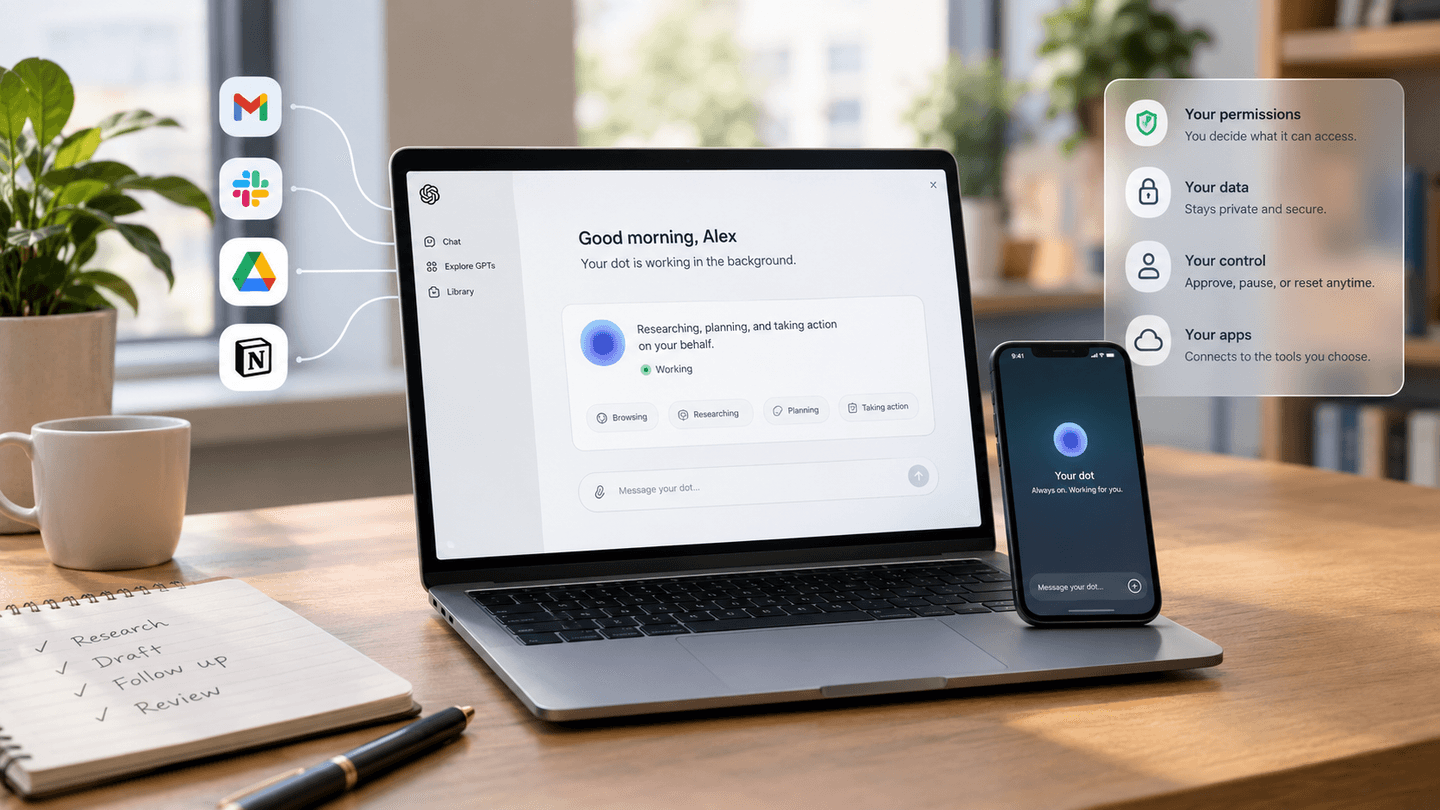
ChatGPT Dots are persistent AI agents inside ChatGPT, powered by GPT-6 Astra. Each dot runs on its own cloud computer, connects to apps you approve, and keeps working between conversations. They’re reasonably safe by design: background research is read-only, risky actions need your approval, and password changes or money transfers stay with you. They still make mistakes, so review anything consequential.
- Written by
- Ali Fawad Hassan
- Topic
- AI
- Reading time
- 13 minutes
- Published
- 29 Sept 2026
OpenAI announced ChatGPT Dots on September 29, 2026, and the pitch is ambitious: an always-on agent that keeps working after you close the tab. For a Pro subscriber, that sounds useful. For an IT lead, it raises harder questions. What can a dot read? What can it send without asking? Where does its data go, and how do you pull the plug? This guide answers those questions from OpenAI’s own launch documentation. It covers setup, permissions, approval rules, monitoring, privacy, usage limits, and the situations where waiting is the smarter call.
What Are ChatGPT Dots?
A dot is an always-on agent in ChatGPT. In this context, an agent is an AI system that plans and carries out multi-step tasks instead of only answering questions. According to OpenAI’s announcement, each dot is powered by GPT-6 Astra, has its own cloud computer and browser, learns from feedback, and can work toward your goals around the clock. For background on the model itself, see our breakdown of GPT-6 Astra’s pricing and capabilities.
Dots reach other software through plugins, which are ChatGPT’s app connections. OpenAI says the plugin ecosystem covers over 4,000 apps. Read that as the size of the catalog. It doesn’t mean every app supports every action, and the Help Center notes that available apps may differ.
You can message or call your dot in ChatGPT on desktop, web, and mobile. The announcement also lists Slack and Microsoft Teams, with texting to follow. The Getting started with your dot guide is narrower at launch. It documents Slack setup and a limited texting beta for US Pro users, but it doesn’t yet describe Teams setup. If your company runs on Teams, confirm that channel works for your workspace before planning around it.
Personal dots vs specialist dots
Everything in this guide concerns your personal dot, which works on your behalf. OpenAI is also previewing specialist dots for organizations. These get their own identity, credentials, and system access for defined jobs such as invoice processing or customer support. They’re limited to focused enterprise pilots for now, and OpenAI says it’s working with Microsoft to manage them through Agent 365.
Who Can Use ChatGPT Dots Right Now?
Early coverage and OpenAI’s own social posts listed Enterprise alongside Pro and Business Premium. The Help Center adds the detail that matters: Enterprise access is a beta that starts switched off. Here’s the launch picture as documented on September 30, 2026.
| Plan | Launch status | Restrictions |
|---|---|---|
| ChatGPT Pro | Rolling out | Not available in the European Economic Area, Switzerland, or the UK |
| Business Premium | Rolling out | All supported ChatGPT regions |
| Enterprise, Edu, Healthcare | Beta | Off by default; a workspace admin must enable it |
| Users under 18 | Not available | Excluded at launch |
The rollout is gradual, so access can take several days to reach an eligible account. Expect this table to change as OpenAI expands availability.
How to Set Up Your Dot
Setup takes a few minutes. The permission decisions around it deserve more time, so this sequence puts the controls ahead of the first real task.
- Start on desktop. Create your dot in the ChatGPT desktop app (Mac or Windows) or ChatGPT in a desktop browser. You can’t create a dot on mobile, and mobile web isn’t supported.
- Name it. The default handle is @yourname-dot. Naming it changes the handle to @yourname-agentname. You can also pick a character or pet.
- Audit your existing plugins first. Your dot inherits the app connections you’ve already granted to ChatGPT. Review them before you connect anything new.
- Set Custom Rules. Decide what the dot may do alone, what needs approval, and what it must never do.
- Decide on local computer access. It’s off by default. Leave it off unless a specific task needs local files or tools.
- Connect messaging channels from desktop. Slack and texting are set up there, not on your phone.
- Move to mobile. After setup, you can message your dot from the ChatGPT mobile app.
ChatGPT Dots Permissions and App Connections
This is where most teams will get caught out. Plugin permissions are shared across dots, ChatGPT, ChatGPT Work, and Codex, according to OpenAI’s dots privacy, security, and safety FAQ. A connection you approved months ago for a one-off chat is now available to an agent that runs in the background.
If you’ve already linked a CRM, for example by connecting ChatGPT to HubSpot through MCP, check that connection’s scope before creating a dot. You manage all of this in the Plugins section of ChatGPT settings.
Three details change how you should think about access:
- Disconnecting isn’t forgetting. Removing an app stops new access. It doesn’t delete what your dot already learned from it.
- Connected apps feed memory without a prompt. Your dot can review connected information proactively and form memories from it, even when you haven’t asked about it.
- Local access expands reach. With your computer connected, a dot can access files, create ChatGPT Work or Codex tasks, use local skills, and fall back to your local browser when its cloud browser is blocked. Camera, microphone, and screen access also need device permissions.
You can connect a personal email account for tasks. At launch, a dot can’t have its own standalone email address.
How Dots Decide When to Ask for Approval
Dots start with built-in action rules, then layer your preferences and a separate safety check on top. OpenAI’s safety post on dots describes the tiers.
Built-in action rules
- No approval needed: reading permitted information, analyzing it, and preparing drafts in your conversations.
- Scoped authorization: sending messages or sharing files. More sensitive data needs a more specific recipient. Health data always requires a named person, while an email address might only need a class of recipient, such as any airline.
- Your approval: purchases using cards already saved on a merchant’s website.
- Confirmation every time: permanently deleting data, installing software from an unrecognized source, or granting new security-sensitive access.
- Handed back to you: changing a password or moving money between financial accounts. The dot can help around these steps but can’t complete them.
Approving one message doesn’t give the dot ongoing permission to contact people. Advance approval stays limited to what you actually authorized.
Custom Rules
Custom Rules let you set four behaviors per action: take action without asking, take action if pre-approved, ask before taking action, or hand off to you. “Pre-approved” means you explicitly requested the action in your prompt. On mobile, you’ll find them under Customize, then Custom rules.
Your dot can draft rules for you, but it needs your approval to change them. Rules can tighten the defaults. They can’t remove mandatory confirmations, handoffs, or core safety requirements.
Auto-review
Auto-review is a separate safety system that checks planned actions, such as sending an email or editing a file, against your instructions, Custom Rules, and safety requirements. For an email, it checks the recipient and the content. When it blocks a step, the dot can ask you, try a permitted alternative, hand the step back, or stop. OpenAI says the controls enforcing Auto-review sit outside the environment the dot can change.
Proactive research is read-only
When you aren’t working with it, your dot looks for ways to help. OpenAI calls this proactive research. Those background tasks use read-only tools, and OpenAI says the limit is enforced in code: they can’t message people, change app content, or control a browser or computer. Any follow-up action goes through the normal rules. The trade-off is privacy, not safety. Read-only still means reading, and the notes it keeps are private to the dot.
Monitoring Your Dot in Activity View
Activity View in the ChatGPT desktop app shows your dot’s ongoing and delegated tasks with their status. You can add context, correct a misunderstanding, change direction, or tell it to stop. Your dot’s profile also sorts work into In progress, Scheduled, and Completed, and you can open the dot’s cloud computer to watch or intervene.
Two more controls matter. Pause, in the profile’s ••• menu, halts work until you resume. Reset deletes the dot entirely, including conversations, saved memories, and scheduled tasks. OpenAI’s safety monitoring can also pause a dot on its own and show you a warning.
One gap for IT leads: the launch documentation describes per-user monitoring. It doesn’t describe a workspace-wide admin view of dot activity. Ask your OpenAI account team what exists before rolling dots out broadly.
Privacy, Memory, and Data-Training Controls
Training defaults depend on the plan. OpenAI doesn’t use content from Business, Enterprise, or Edu workspaces to train models by default. On personal plans, including Pro, the “Improve the model for everyone” setting in ChatGPT’s data controls decides. When it’s on, that can include actions your dot takes, work it delegates, automations, and connected-app data used in conversations.
Background research threads aren’t trained on directly. But if your dot pulls a research note into an eligible conversation, that note can be used, depending on your settings.
Memory is shared both ways with ChatGPT. Turning off ChatGPT Memory stops the sharing but doesn’t delete what the dot already received. More importantly, you can’t currently view, edit, or delete individual dot memories. Deleting the dot is the only way to clear its context.
A few safeguards help. The dot’s context doesn’t retain credentials, images, or screenshots. Secure sign-in keeps passwords out of the model’s context for supported sites. That protection doesn’t cover a password pasted into chat or a document. Human review can still happen in limited cases, including safety cases, even with model improvement turned off.
Usage Limits and Cost
Your first dot is included in Pro and Business Premium at no extra cost. Conversations with your dot don’t count toward ChatGPT usage limits. Tasks your dot starts in Codex or ChatGPT Work do count, as usual.
The deeper-work allowance is less settled. The announcement mentions extended limits for the first month. The Help Center says dots usage won’t count toward eligible plan allowances for the next month, with per-plan terms to follow. OpenAI also says you’ll later be able to add more dots and buy more speed or monthly capacity, but it hasn’t published pricing. Don’t build a budget on launch-month behavior.
ChatGPT Dots vs Regular ChatGPT, Codex, and ChatGPT Work
These products overlap because they share permissions and hand work to each other. The difference is who drives the work.
| Question | Regular ChatGPT chat | Your dot | Codex and ChatGPT Work |
|---|---|---|---|
| Works between conversations? | No | Yes, including scheduled tasks and proactive research | Runs tasks a dot or you start |
| Own cloud computer? | No | Yes, with its own browser | Codex cloud environments must be created in Codex first |
| Plugin permissions | Shared | Shared, plus Custom Rules | Shared |
| Counts toward usage limits? | Yes | Conversations don’t | Yes, even when a dot starts the task |
| Where to monitor | The chat thread | Activity View and the dot profile | In the product, or through the dot that delegated |
Limitations and Risks to Plan For
OpenAI is candid that dots make mistakes. The risks worth planning for are specific.
Prompt injection is reduced, not solved. Prompt injection is hidden text in a webpage, email, or document that tries to hijack an agent. OpenAI’s prompt injection guidance and the dots FAQ both say protections lower the risk without eliminating it. A dot reading your inbox reads attacker-written email too.
Some actions can’t be undone. Your dot may reverse a document edit or recall an email. A sent Slack message to a client is harder to take back.
Confident errors act faster. The grounding problems covered in how to prevent AI chatbots from hallucinating still apply. With a dot, a wrong answer can become a wrong action.
Memory is opaque. Without item-level controls, you can’t prove a specific fact was removed short of a full reset.
The documentation is days old. Help Center pages were updated hours before this guide was written. Channel support, usage terms, and plan eligibility are all likely to shift.
A Least-Privilege Setup Checklist
Least privilege means granting only the access a task needs. This is our recommended starting configuration, built from OpenAI’s documented controls.
- Disconnect every plugin your dot doesn’t need for its first job.
- Add a Custom Rule requiring approval before any external message, then loosen it per task.
- Keep local computer access off. Turn it on for a specific project and revoke it afterward.
- Never paste passwords or API keys into chat. Use secure sign-in where supported.
- On personal plans, set your model-training preference before connecting work apps.
- Check Activity View daily until you trust the dot’s judgment on your workload.
- Document the Reset procedure, since it’s the only way to purge a dot’s memory.
For teams on Enterprise, start with a small pilot group. Agree in writing which apps dots may use, which actions always need approval, and who reviews incidents.
Who Should Not Enable ChatGPT Dots Yet
- Teams handling regulated data. If you must show that a specific record was deleted, the lack of item-level memory control is a blocker.
- Workflows that need identical output every run. A dot adapts, which is the point. For predictable, auditable steps, a scripted automation such as an n8n agent that updates HubSpot is easier to test and audit.
- Accounts with unaudited legacy connections. Clean up plugins first, or your dot inherits years of forgotten access.
- Microsoft Teams–centric companies expecting full parity. Wait until Teams setup is documented for your workspace.
Our Verdict on ChatGPT Dots
Enable a dot now if you’re an individual Pro or Business Premium user willing to scope apps tightly and review its work. If you run an Enterprise workspace or handle regulated data, keep it off beyond a small pilot until OpenAI publishes admin controls and settled usage terms. If you want help designing agent permissions or a rollout policy, talk to our AI agents and automation team.
Useful answers
Frequently Asked Questions
Do ChatGPT Dots cost extra?
Your first dot is included in ChatGPT Pro and Business Premium at no extra cost. OpenAI says you’ll later be able to add more dots and increase each dot’s speed or monthly capacity, but it hasn’t published pricing. Plans below Pro aren’t listed as eligible at launch.
Can I create a dot on my phone?
No. You must create your dot in the ChatGPT desktop app or ChatGPT in a desktop browser. Once setup is complete, you can message it from the ChatGPT mobile app. Mobile web isn’t supported, and messaging channels such as Slack are configured from desktop.
Can I have more than one dot?
Not at launch. You start with one primary dot that you can name and customize. OpenAI says it plans to let users add more dots later and envisions teams of dots working together, but it hasn’t given a date. Specialist dots for organizations are a separate enterprise pilot.
Can my dot buy things for me?
Yes, with limits. A dot can make purchases using a card you’ve already saved on a merchant’s website, and each purchase requires your approval. You can give that approval in advance if it specifically covers the purchase. Moving money between financial accounts is always handed back to you.
What should I do if my dot makes a mistake?
Ask your dot to fix it first. It may be able to reverse document edits or recall an email, though some actions can’t be undone. You can also redirect or stop it in Activity View. To report a problem, use the support guidance in OpenAI’s Getting started with your dot article.
What’s the difference between pausing and resetting a dot?
Pausing stops your dot’s work until you resume it, and nothing is deleted. Resetting deletes the dot, including its conversations, saved memories, and scheduled tasks. Files, Codex threads, and ChatGPT conversations it created are stored separately and remain after a reset.
Integr8e perspective
The best technology choice creates useful momentum without adding avoidable complexity.